18.4 Other 3D Image Visualization Options
After a 3D image stack is loaded you can attach several image renderers to visualize the image data in the Graphics View. Before you add an image renderer, make sure the correct image stack is selected in the Model Viewer. In the following section, the different image renderers are described.
Image Slicer
The image slicer shows a single slice of the 3D image stack in the Graphics View. You can select the image orientation as well as relative position in the image stack.
-
Image orientation - Choose the orientation of the image slice
-
Image offset - Choose the relative position of the image offset
-
Color map - Set the color map that will be used to render the slice.
Volume Renderer
The Volume Renderer shows a volume rendering of the image stack in the Graphics View. The following options can be set.
-
alpha scale - Sets the overall alpha scale, which scales the transparency of the image.
-
min intensity - Minimum cutoff image intensity. Voxels with an intensity below this value will be rendered with a transparency set to the value of the min alpha parameter.
-
max intensity - Maximum cutoff image intensity. Voxels with an intensity above this value will be rendered with a transparency set to the value of the max alpha parameter.
-
min alpha - the alpha (transparency) value used by voxels with an intensity below the min intensity parameter.
-
max alpha - the alpha (transparency) value used by voxels with an intensity above the max intensity parameter.
-
Amin, Amax - The alpha (transparency) range for voxels with an intensity between min intensity and max intensity.
-
Color map - Color map for mapping the grayscale voxels to a color value.
-
Lighting effect - If Yes, the voxel color is attenuated based on local normal estimation, which simulates a lighting effect.
-
Lighting strength - The strength of the lighting effect, as a value between 0 and 1.
-
Ambient color - The ambient color added for the lighting effect.
-
Specular color - The specular color added for the lighting effect.
-
Light direction - The direction of the light used in the lighting effect.
Image Isosurface
The image isosurface features renders an isosurface of the 3D image data. This feature has the following parameters.
-
Isosurface value - The image intensity value that determines the isosurface.
-
Smooth surface - Smooth the facet normals to create a more smooth rendering of the isosurface.
-
Surface color - set the color of the isosurface.
-
Close surface - Close the surface when it intersects with the boundaries of the image domain.
-
Invert space - Invert the image space.
-
Allow clipping - Allow this surface to be clipped by any active cutting planes.
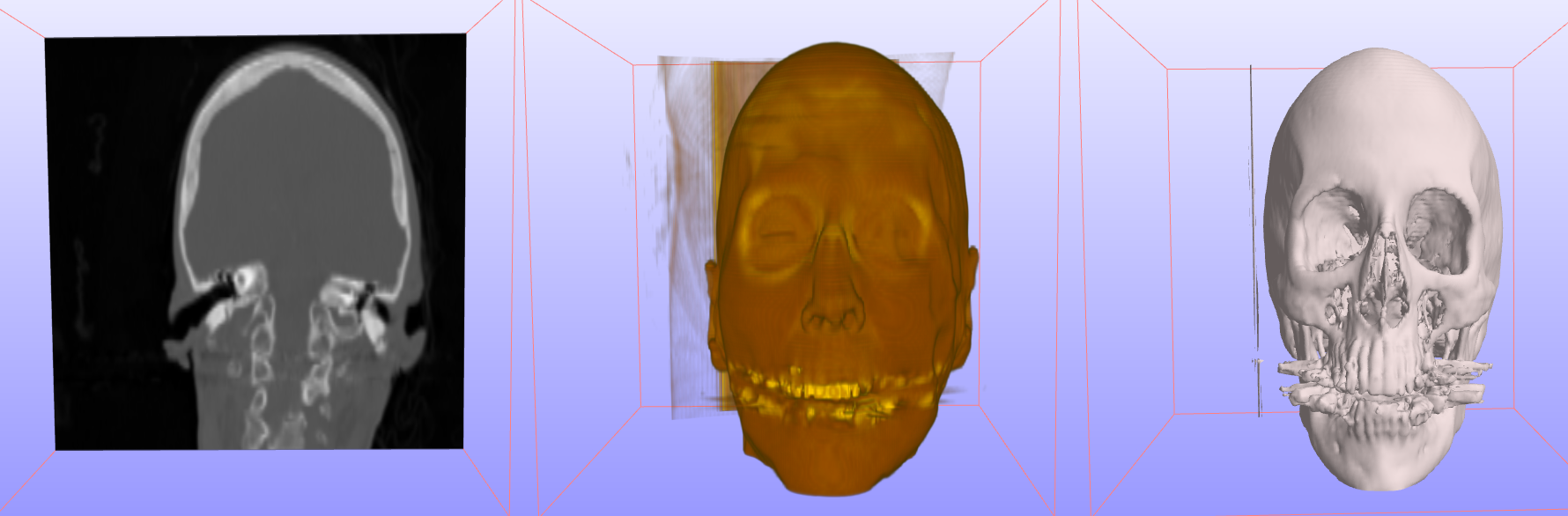
Figure 1. The various 3D image renderers. From left to right, Image Slicer, Volume Renderer, and Image Isosurface. (source: cthead from Stanford Volume Dataset).